

How To Make A 3D Animated Gif With Blender and ImageMagick The DIY Way
Of course there are tools online and paid software that you can use to do this, but here's how to do it the DIY way just using 2 open source programs, Blender and ImageMagick.
So the first thing you're gonna have to do is know how to create something in Blender and animate it. There's already of ton of info online about how to do that so go look it up on Youtube or something. But here are all the steps you need to take after you get your animation. Also, you're gonna need to download and install ImageMagick. It's a command line tool so there's no nice pretty user interface for you to use. You've gotta use the command line. Don't be scared though! All you gotta do is copy and paste and change like one or two parts.
So with those pre-requisites out of the way, here's how you do it.
(In Blender)
1. Go to 'Render -> Film' in the right panel and check the 'Transparent' box
This will allow you to render only your object with no 'world' color or anything behind it.
2. Go to Render Output settings and set the Media Type to 'Image' and the file format to PNG.
'Printer Icon' -> 'Output': This is important because if you want your animated gif to have a transparent background, the individual frames need to be pngs. Jpeg can't handle transparency and Blender can't output in GIF. And the animation has to be images because it's a little trickier to get video files to handle transparent backgrounds. I think it's possible though, you can try it out, but I know it works with pngs.
Make sure you set 'Color' to RGBA. You HAVE TO have the alpha channel to get the transparent background. If you don't care about transparency, just leave it as RGBA
3. Go up to 'Format' in that same panel, and set the resolution to something a bit lower like 720px by 720px.
That's if you wanna make it a square, but it depends on the orientation of your animation. if it's more portrait, make the Y value taller and if it's more landscape, make sure X is bigger. The main thing is, you wanna make it smaller cause gifs don't need to be super huge and high res. As a matter of fact, usually the shittier the resoultion the better, so you might wanna go down even further. Plus smaller ones load faster so that's an added bonus.
4. Render the Animation
Pretty self explanatory. Just go up to 'Render' -> 'Render Animation' and... Oh! Make sure in the 'Output' settings (where you set the media type to PNG) that you select where you want the pngs to be saved. By default, it's gonna put them in the /tmp directory. That's fine but sometimes its a pain to find. Especially on a Mac. but you can open finder and just hit "Command + Shift + G" to open up a box that let's you type in directly where you wanna look. Then you can type /tmp but honestly, it's easier to just save the render output to somewhere you can easily manage. Plus tmp files are literally temporary so they'll be blown away at some point.
(On Your Computer's Command Line Interface)
5. Open the Command line and Get Ready to Use ImageMagick
Download ImageMagick if you don't already have it installed. Like I said though, it's a command line utility so there's no user interface. Don't be scared though, all you gotta do is open the directory (folder) where your png frames are stored and type this in (replacing frame_ with the first part of your png files that's all the same, and output.gif with whatever you want your final file to be named.)
If you're not famliar with how to move around to different directories in the command line, the command to do that is just cd (change directory), so for example
cd /path/to/my/pngs
Then, inside that directory, just run this (replacing frame_ and output.gif with you you need)
magick -dispose Background -delay 10 -loop 0 frame_*.png output.gif
That's it. Here's what the options do:
- -dispose Background clears each frame before next one appears
- -delay 10 makes it 10 frames per second
- -loop 0 makes it loop forever. Use 1 instead if you only want it to play once.
- frame_*.png The Blender output gives the files sequential names, so ImageMagick will pick them up in order
- Transparency is preserved automatically from the PNG alpha channels
6. Marvel at the Result
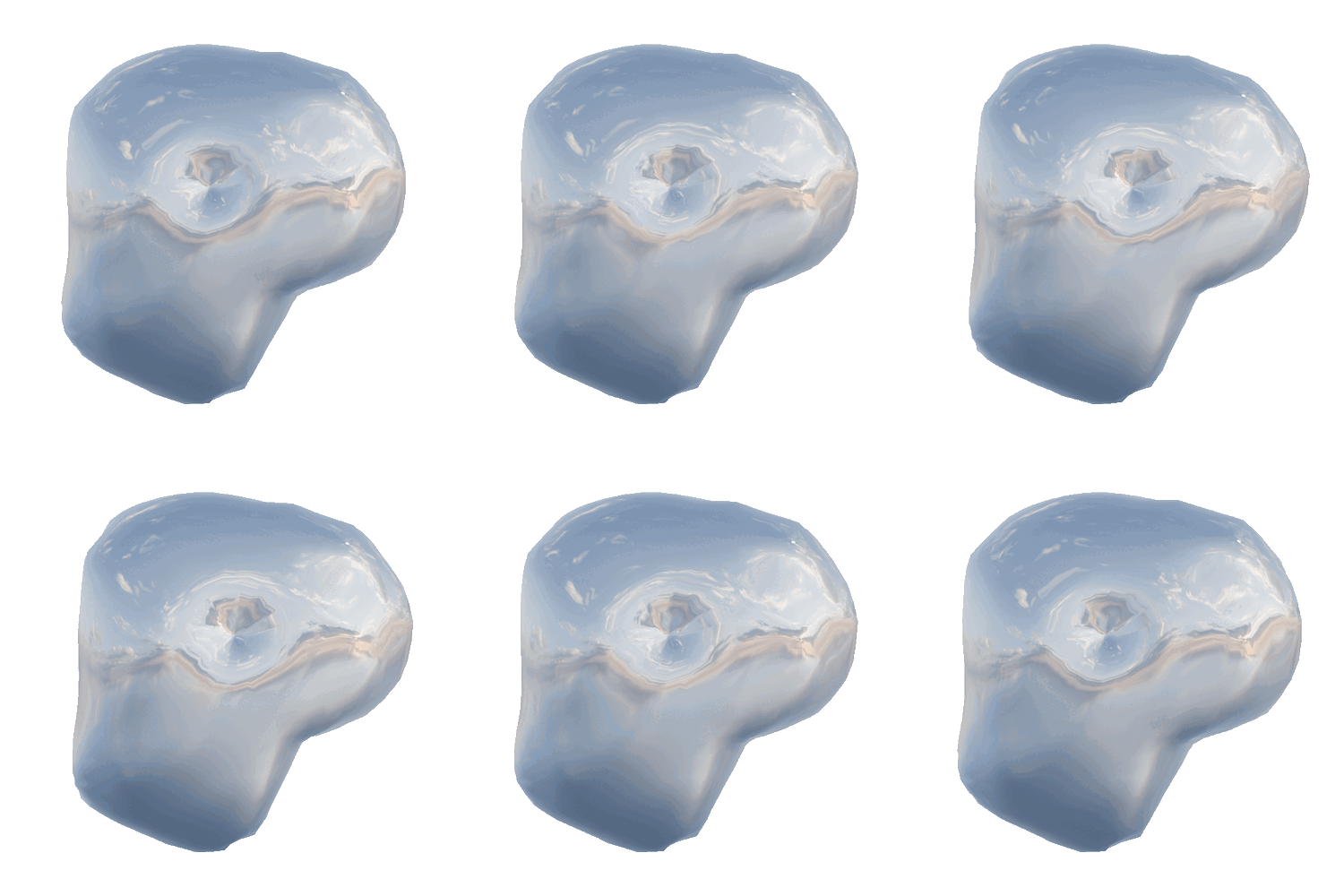
Here's the one I just made.
7. (Optional) Re-size the Result
You may end up wanting some different sizes of the gif. Might be necessary if you wanna optimize for a website or something. You can run this command to resize to some specific size. I'm using max 900px wide here but you should replace that with whatever number you want. And if you want to restrict it to a certain height, just replace the x with y. Of course, output.gif will be whatever your 'input' gif is called. I'm just using 'output.gif' because we just created it and named it output in the step above. You can name the resized result anything you want, but I like putting the size in the name so its easier to identify later.
magick output.gif -coalesce -resize '900x>' -layers Optimize output_900px_w.gif
Now you can have any size you need. You can use this on any gifs too, of course.
So yeah, that's how you do it with 3d animations, but if you wanted to do it with photographs, you'd just skip the Blender part, take a bunch of photos, name them sequentially (like photo_001, photo_002, photo_003, ...) then do the ImageMagick thing and voila. Same with drawings or whatever images you wanna use.
Now you know how to do it the DIY way. You can even do this with no internet (once you've got Blender and ImageMagick installed of course). Another cool things about ImageMagick is that you can use it to batch process pretty much any image files. So just say for example, you had like 100 photos, and you wanted to re-size all of them at the same time. Or make all of them black and white. Whatever. You can do that with ImageMagick and save a ton of time.
Here's a link to it for more info on what it can do: https://imagemagick.org/
And of course, Blender https://www.blender.org/